
How to Export Your Pocket Bookmarks Before It's Too Late (2026 Guide)

Pocket shut down in July 2025, but Mozilla has kept the data export portal alive — for now. If you haven't exported your Pocket bookmarks yet, do it today. There's no guarantee how long the export tool will remain available.
This guide walks you through the entire process: exporting your Pocket data, understanding what you get, and importing it into a new read-later app.
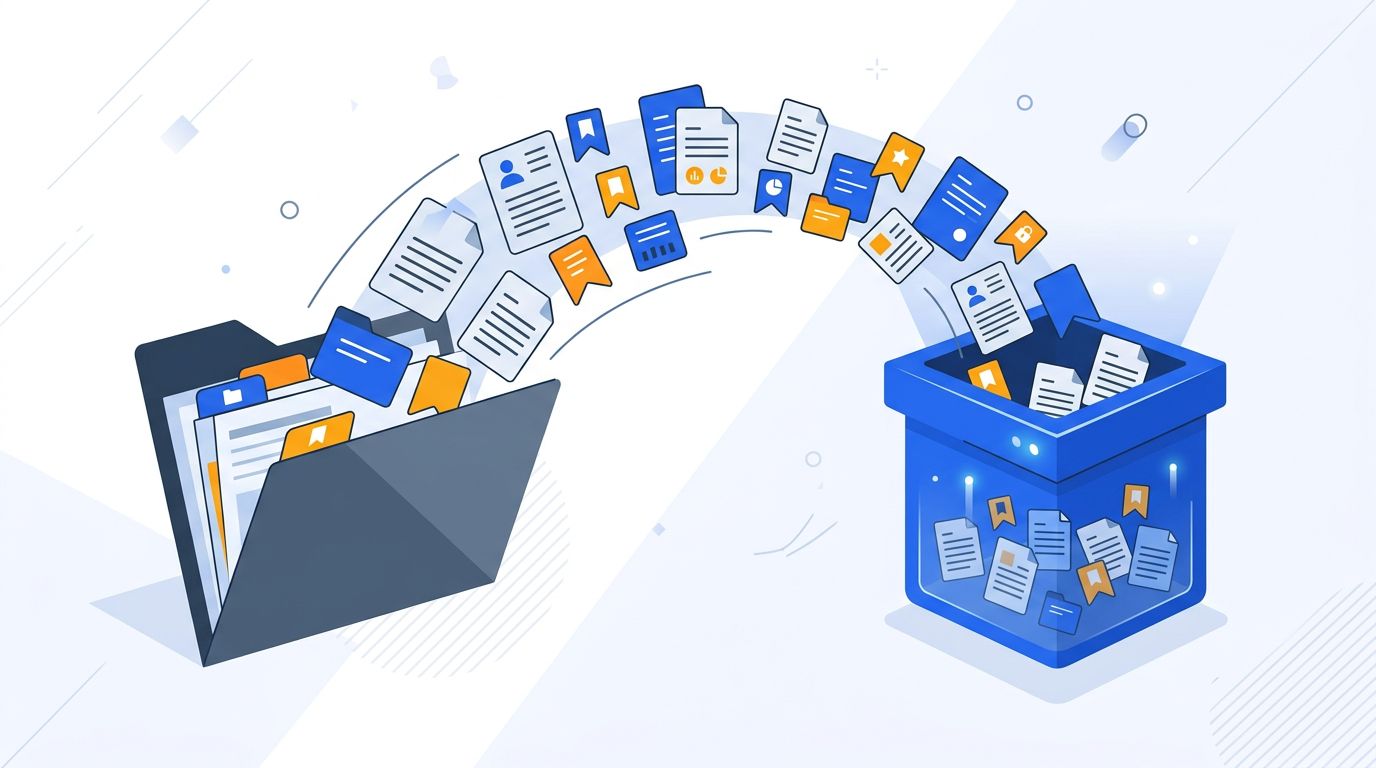
Step 1: Export Your Pocket Data
Mozilla provides an official export tool at getpocket.com/export. Here's how to use it:
- Go to getpocket.com/export — If you're not already logged in, sign in with your Pocket or Mozilla account credentials
- Click "Export HTML File" — This generates an HTML file containing all your saved links, including:
- Article titles
- URLs
- Date saved
- Tags you assigned
- Read/unread status
- Save the file — Your browser will download a file called
ril_export.html. Save this somewhere safe — your Documents folder, cloud storage, wherever you keep important files
Important: The export only includes links and metadata. It does not include the full text of articles, your highlights, or any cached offline content. If there are specific articles you want to preserve in full, visit them in your browser and save the pages individually before the export tool disappears.
Step 2: Understand What You Exported
The ril_export.html file is a standard HTML bookmark file — the same format used by Chrome, Firefox, and Safari for bookmark exports. You can open it in any browser to see a list of all your saved links organized into two sections:
- Unread Items — Articles you saved but haven't marked as read
- Read Archive — Articles you marked as read or archived
Each link includes the article title, URL, date added, and any tags. This format is widely supported — virtually every bookmark manager and read-later app can import HTML bookmark files.
Step 3: Choose Your New App
Before importing, pick where you want to go next. Here's a quick guide based on what you valued most about Pocket:
- "I loved reading articles in Pocket's clean reader view" → Readwise Reader or Instapaper
- "I saved tons of articles and never read most of them" → Mailist (sends weekly email reminders of your unread saves)
- "I need to organize a big collection of links" → Raindrop.io
- "I want a free Pocket replacement with similar features" → Omnivore
- "I want complete control over my data" → Wallabag (self-hosted)
For a detailed comparison of all options, read our complete guide to Pocket alternatives.
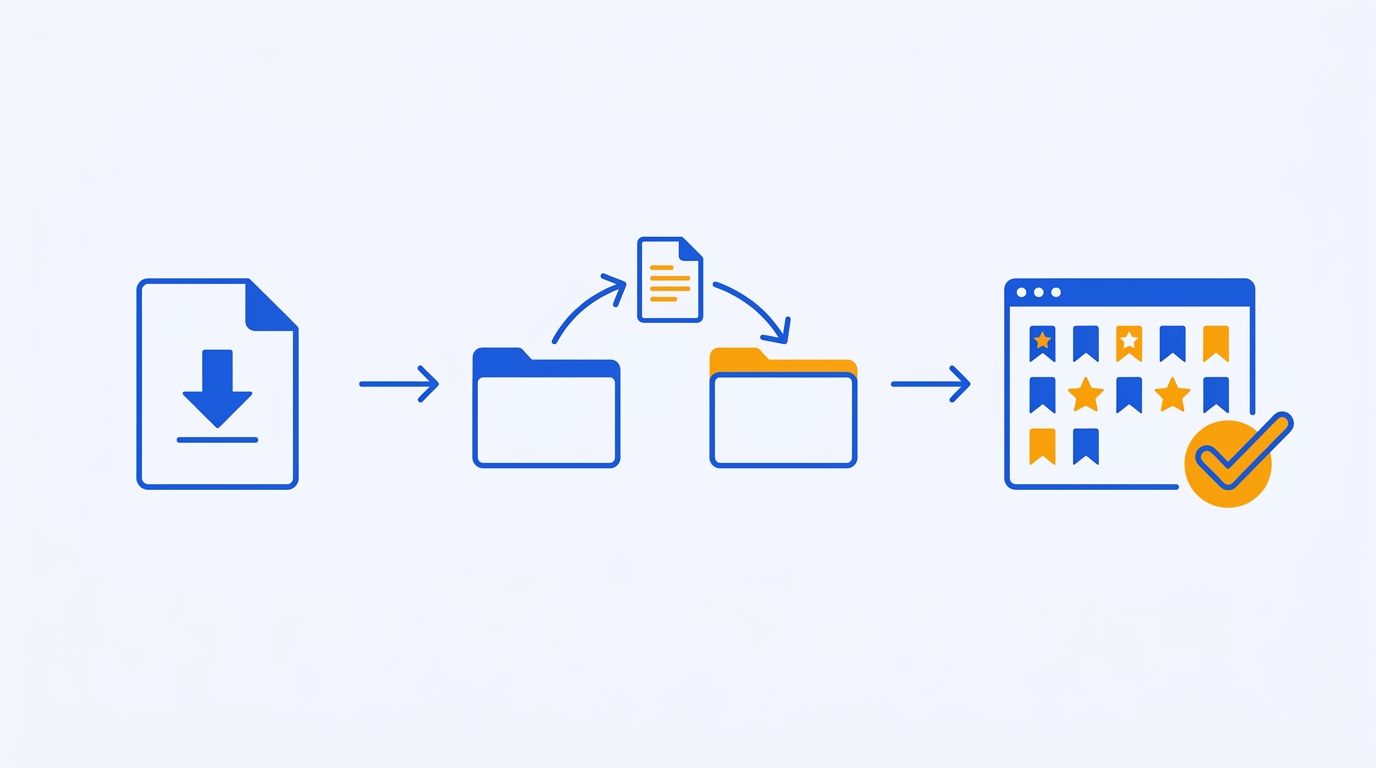
Step 4: Import into Your New App
Here's how to import your Pocket export into the most popular alternatives:
Importing into Mailist
- Create a free account at my.mailist.app/sign-up
- Go to Settings → Import
- Select "Import from file" and upload your
ril_export.htmlfile - Mailist will parse the file and show you a preview of all detected bookmarks
- Select which bookmarks you want to import (you can import all or pick specific ones)
- Click "Import" — your bookmarks will be added with their original tags preserved
- Once imported, Mailist will start including your unread links in your weekly newsletter
Importing into Readwise Reader
- Open Readwise Reader and go to Settings → Import
- Select "Pocket" as the source
- Reader offers a direct Pocket integration — if you can still log in to your Pocket account, use this option for the cleanest import
- Alternatively, upload the HTML file under "Other sources"
- Reader will import your links and queue them in your Inbox
Importing into Instapaper
- Log in to Instapaper and go to Settings
- Scroll down to "Import" and select "From Pocket"
- Upload your
ril_export.htmlfile - Instapaper will process the file and add all links to your reading list
Importing into Omnivore
- In Omnivore, go to Settings → Import
- Select "Import from file"
- Upload your HTML export file
- Omnivore will import all links with labels matching your Pocket tags
Importing into Raindrop.io
- Go to Settings → Import in Raindrop.io
- Select "HTML file" and upload
ril_export.html - Raindrop.io will create a new collection with your imported bookmarks
- Note: Raindrop.io imports the links but may not preserve Pocket-specific tags perfectly — you may need to reorganize
Importing into Wallabag
- In Wallabag, navigate to Import → Pocket
- Wallabag has a dedicated Pocket importer that handles the HTML format
- Upload your file and Wallabag will fetch and archive the full article content for each link
- This is the most complete migration — you get the actual article text, not just the link
Step 5: Verify Your Import
After importing, take a few minutes to verify everything came through correctly:
- Check the count — Does the number of imported bookmarks match what you expected?
- Spot-check links — Open a few random bookmarks to make sure the URLs are correct
- Check tags — Verify that your Pocket tags were preserved during import
- Test broken links — Some of your saved articles may have been removed from the web since you saved them. Tools like Mailist automatically detect broken links; others may require manual checking
Step 6: Set Up Your New Workflow
Your data is safe in a new home. Now set up the day-to-day saving workflow so you can move on from Pocket completely:
- Install the browser extension — Every tool listed above offers a Chrome and/or Firefox extension. Install it so you can save links with one click
- Set up mobile sharing — If your new app has a mobile app, configure the share sheet so you can save links from your phone
- Configure notifications or reminders — In Mailist, set your preferred newsletter day and the number of links per email. In other apps, enable any notification or reminder features
- Archive your Pocket export — Keep the
ril_export.htmlfile as a backup. Store it in cloud storage or an external drive. It's a static HTML file that will remain readable for decades
What If the Export Tool Is No Longer Available?
If you're reading this and the Pocket export tool at getpocket.com/export is no longer accessible, here are your options:
- Check the Wayback Machine — archive.org may have cached versions of your Pocket profile page
- Check your email — If you used Pocket's "Email to Pocket" feature, you may find forwarded articles in your sent mail
- Browser history — Search your browser history for "getpocket.com/read" to find URLs of articles you opened from Pocket
- Third-party archives — If you connected Pocket to IFTTT, Zapier, or similar tools, check those services for logs of your saved articles
The most important lesson from Pocket's shutdown: always ensure you can export your data from any service you depend on. When choosing your next read-later app, data portability should be a key criterion.
Frequently Asked Questions
How long will the Pocket export tool be available?
Mozilla hasn't announced a specific end date for the export tool. It's been available since the July 2025 shutdown, but it could be removed at any time. Export your data as soon as possible.
Does the Pocket export include full article text?
No. The export file contains links, titles, dates, and tags — not the full article content. If you need the article text preserved, import into Wallabag, which fetches and archives the full content of each link.
Can I import Pocket bookmarks into Chrome?
Yes. Chrome can import HTML bookmark files: go to chrome://bookmarks, click the three-dot menu, select "Import bookmarks," and choose your ril_export.html file. However, a dedicated bookmark manager like Mailist will give you a much better experience. See our Chrome bookmarks import guide for details.
What's the best Pocket alternative for someone who had Pocket Premium?
If you valued Pocket Premium for its ad-free reading and permanent library, Readwise Reader ($8.99/mo) is the closest equivalent with an even better reading experience. If you valued the saving and rediscovering aspect, Mailist takes that further with its weekly newsletter approach.
Can I use multiple apps with my Pocket export?
Yes. The HTML export file can be imported into as many apps as you want — importing doesn't modify or delete the file. You could import into Raindrop.io for organization and Mailist for reading reminders, using both tools together.
Stop saving, start reading
Mailist turns your bookmarks into a weekly newsletter so you actually read what you save.
Start Reading for FreeFree forever · No credit card required